JSON Formatter & Validator

Beautify, minify and validate JSON with exact error positions and a collapsible tree view.

Format or validate valid JSON to see the tree.

About this tool

Copy a JSON response straight out of an API call or a log file and it usually arrives as one unbroken line. Nobody reads JSON like that comfortably, so this formatter re-indents it into something a person can actually follow, while checking the syntax at the same time.

Paste JSON into the box and pick an action. Format rebuilds the document with the indentation you prefer, 2 spaces, 4 spaces or a tab. Minify strips out every space and line break, handy when a payload needs to be as small as possible or you're embedding it in a config value. Sort keys puts object properties in alphabetical order so two documents line up for comparison. The tree view adds collapsible branches, so a large response doesn't mean scrolling past thousands of lines to find one field.

When something is wrong, the tool points at it: trailing commas, single quotes where double quotes belong, property names without quotes, a missing bracket. Browsers usually report a line and column too, so you can jump straight to the problem and fix it.

All of this happens in your browser. Nothing you paste here, including tokens or internal API responses, gets sent anywhere.
How to use

  1. Paste your JSON into the Input box, or click Upload file to open a .json file from your computer.
  2. Pick the indentation you want: 2 spaces, 4 spaces or tab.
  3. Click Format to beautify, Minify to compress, or Validate to only check the syntax.
  4. Tick Sort keys if you want object properties ordered alphabetically.
  5. Switch to the Tree view tab to explore nested data, then use Copy or Download to save the result.

Tip: press Ctrl + Enter inside the input box to format quickly.

Frequently asked questions

A JSON formatter (also called a beautifier or pretty printer) rewrites JSON text with consistent indentation and line breaks so people can read it. It does not change the data, only the whitespace.

No. The formatter runs entirely in your browser. The text you paste never leaves your device, so it is safe to use with private data.

The usual causes are a trailing comma after the last item, single quotes instead of double quotes, property names without quotes, comments (which JSON does not allow), or a missing bracket or brace. The error message shows where the parser stopped.

Formatting adds whitespace to make the data easy to read. Minifying removes all optional whitespace to make the text as small as possible. Both produce JSON with identical content.

Sorting only changes the order of properties inside objects. JSON objects are unordered by definition, so the meaning stays the same. Arrays are never reordered.

There is no fixed limit, but very large files (tens of megabytes) depend on your device memory. For files that big, use the minify or validate actions instead of the tree view.

Related articles

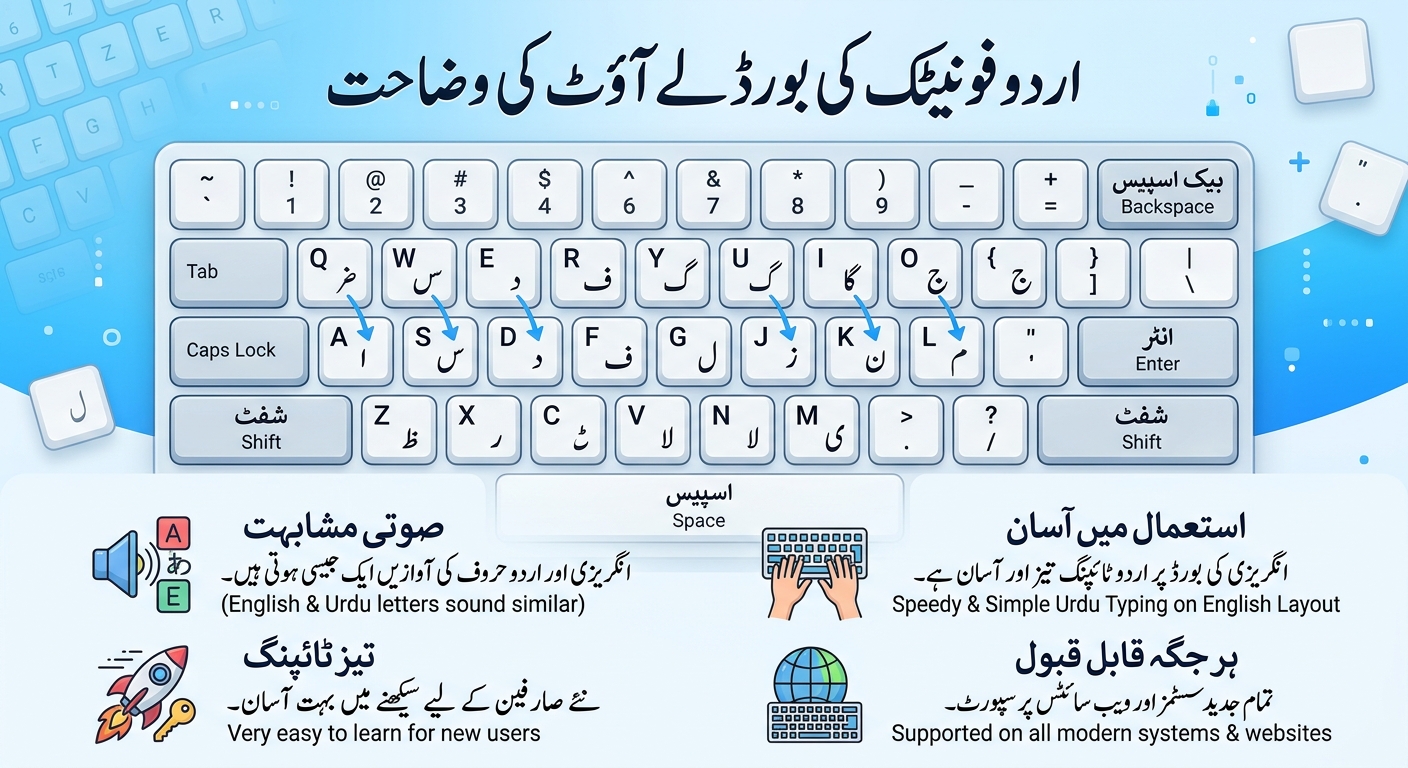
Urdu Phonetic Keyboard Layout Explained
Guides Nov 10, 2026

Urdu Phonetic Keyboard Layout Explained

A complete chart of the Urdu phonetic keyboard layout: every letter, every Shift key, the vowel marks and the punctuation, with practice words you can try yourself.